One moment
Getting your download ready.
2.2 GB, including the offline AI model so your messages stay on your machine. Expect roughly 5 to 30 minutes depending on your connection, and longer on a slow one.
Checking this device first.
If your download didn’t start, use retry download or start over.
Backup plan
Lost the link? Email it to yourself in case the auto-download didn’t kick off, or to finish on a different machine.
Code-signedv2.0.1CustodyComms-Setup-2.0.1.exeWindows 10/11, 64-bit
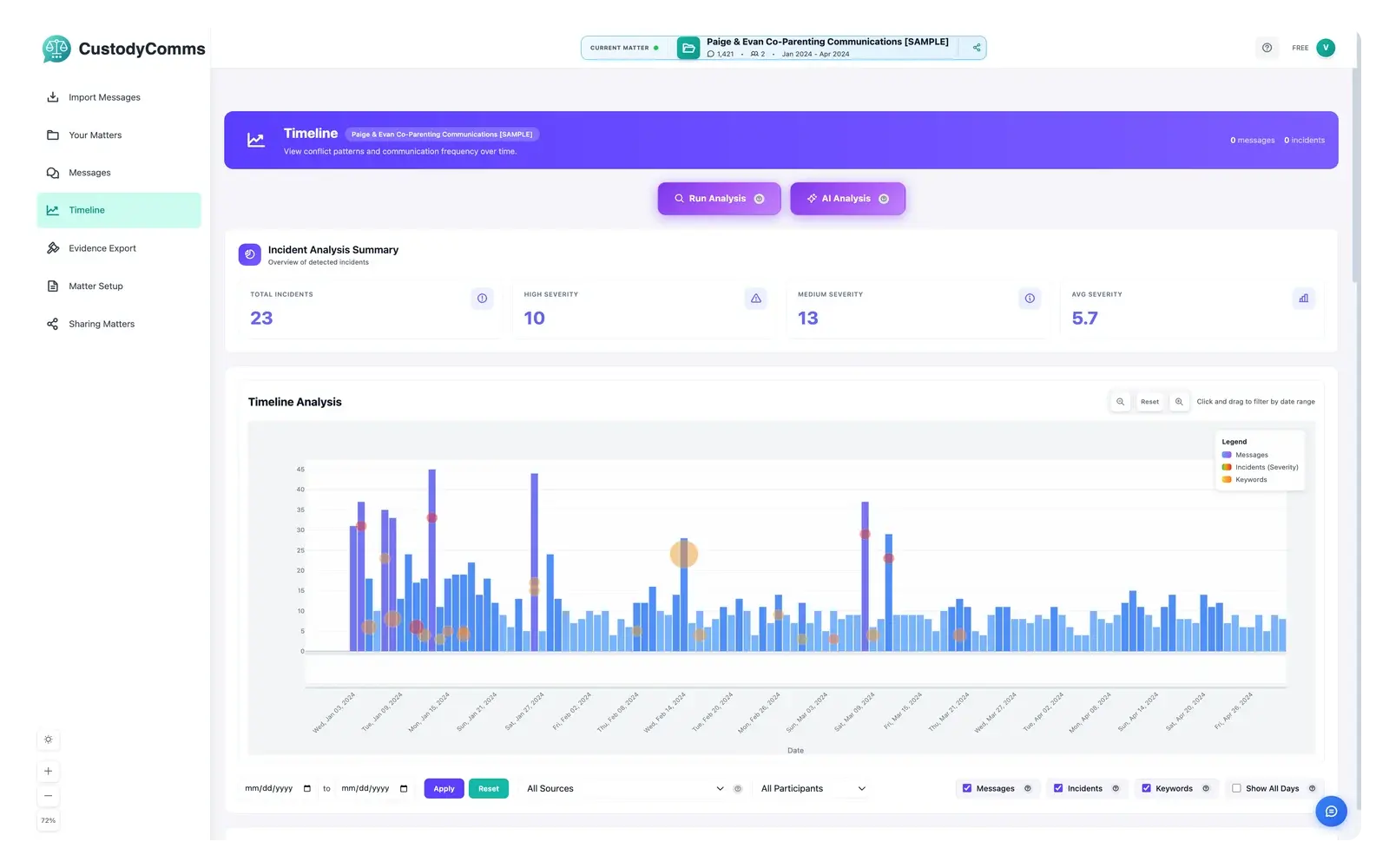
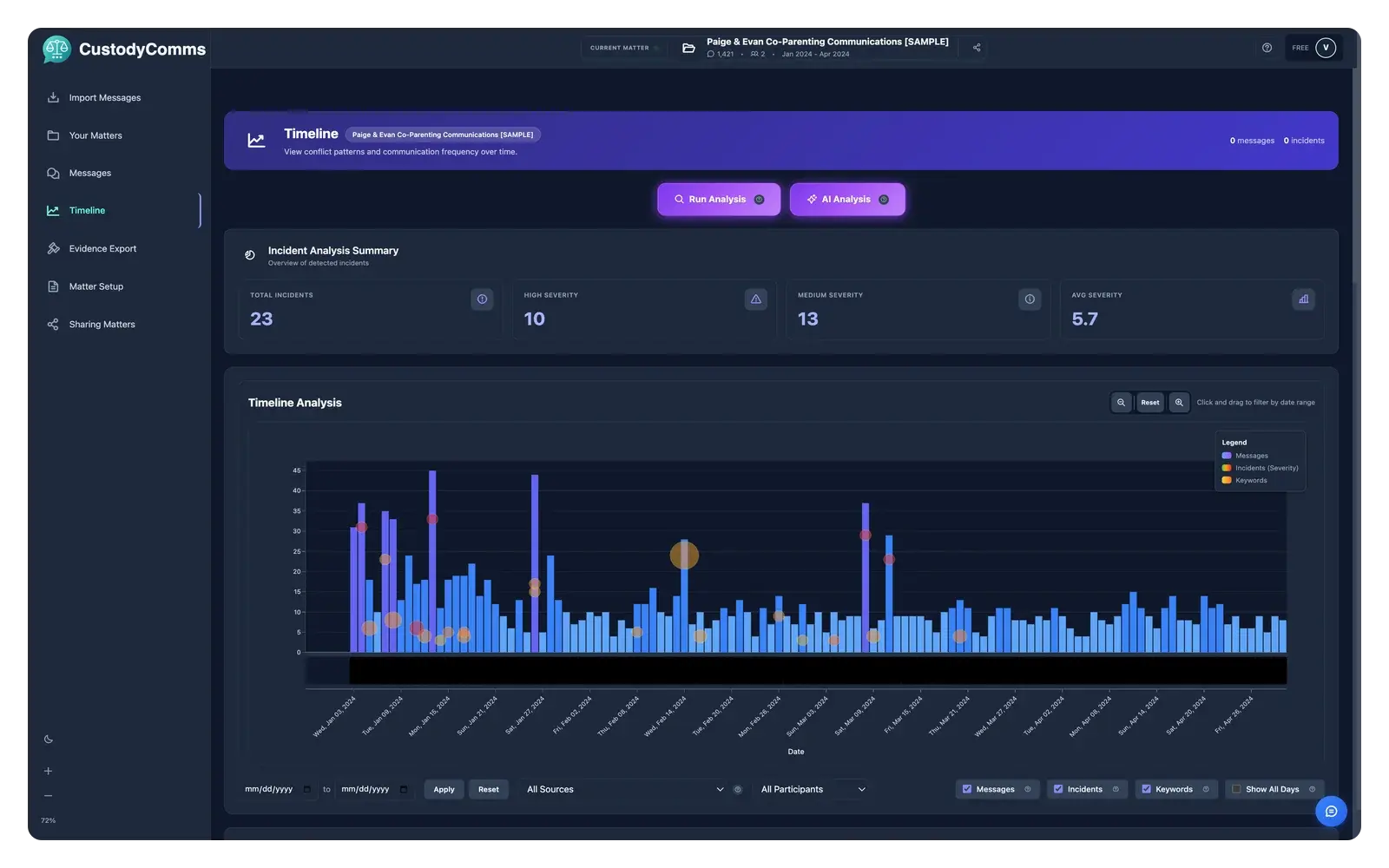
A preview of the incident timeline you’ll see after your first import.
While that finishes, here’s what to do next on Windows.
~2 minutes- 1Open the installer from DownloadsDouble-click CustodyComms-Setup-2.0.1.exe to start. It usually lands in your Downloads folder.
- 2If Windows prompts, click "More info → Run anyway"Windows may show a security prompt while our publisher reputation builds. The installer is code-signed.
- 3Follow the installerCustodyComms installs into Program Files and creates a Start Menu shortcut.
- 4Sign in and start your first importSign in with your CustodyComms account.
Trouble installing? Contact support.
